Flatpak package
If you have installed RSS Guard from Flathub, you may notice that some features do not work out of the box. This is mainly due to Flatpak’s sandboxing model, which significantly limits how RSS Guard interacts with other applications on the system, as well as with files and directories.
Launching at system startup
To enable RSS Guard to start automatically at system startup, you must first grant it write access to the ~/.config/autostart directory. Run the following command:
flatpak override --user --filesystem=xdg-config/autostart io.github.martinrotter.rssguard
After that, restart RSS Guard and follow these steps:
Go to Tools > Settings.
Select the General category in the left panel.
Tick the Launch RSS Guard on operating system startup checkbox.
Click the Apply button to save your settings.
Using an external web browser
To allow RSS Guard to open links using a custom web browser, you must first grant it permission to launch other applications on the system. Run the following command:
flatpak --user override --talk-name=org.freedesktop.Flatpak io.github.martinrotter.rssguard
After that, restart RSS Guard and follow these steps:
Go to Tools > Settings.
Select the Network & web & tools category in the left panel.
Navigate to the External web browser tab.
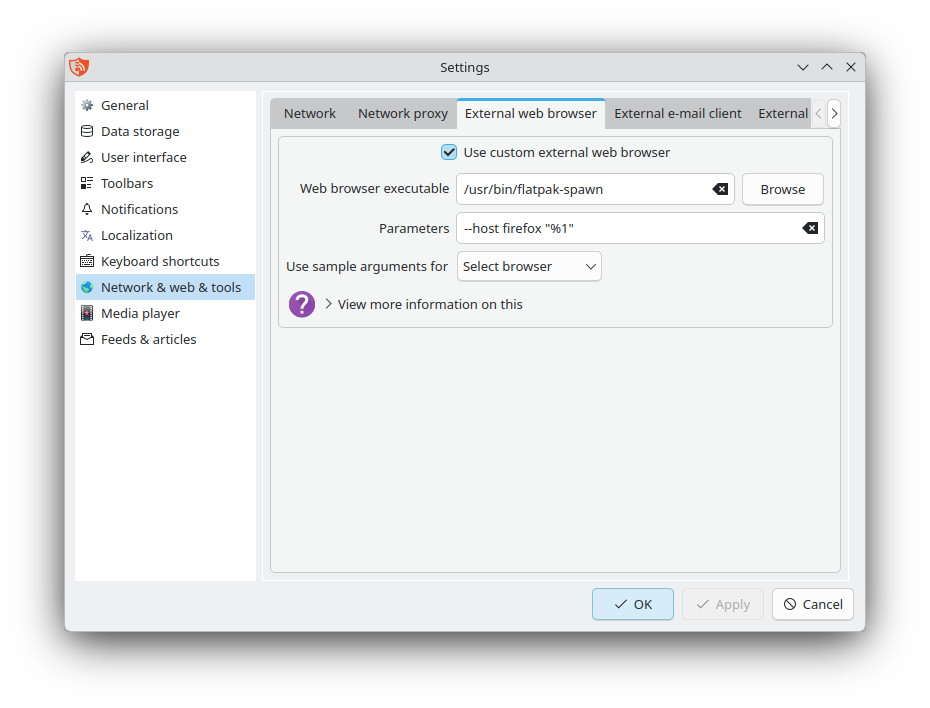
Tick the Use custom external web browser checkbox.
In the Web browser executable field, type this:
/usr/bin/flatpak-spawnIn the Parameters field, type this:
--host firefox "%1"(NOTE: Replacefirefoxwith your browser of choice).Click the Apply button to save your settings.
Your configuration should look similar to this:
Adding external tools
To allow RSS Guard to run external tools, you must first grant it permission to launch other applications on the system. Run the following command:
flatpak --user override --talk-name=org.freedesktop.Flatpak io.github.martinrotter.rssguard
After that, restart RSS Guard and follow these steps:
Go to Tools > Settings.
Select the Network & web & tools category in the left panel.
Navigate to the External tools tab.
Click the + Add tool button to add a new tool.
Double-click the New tool row and choose any name for it.
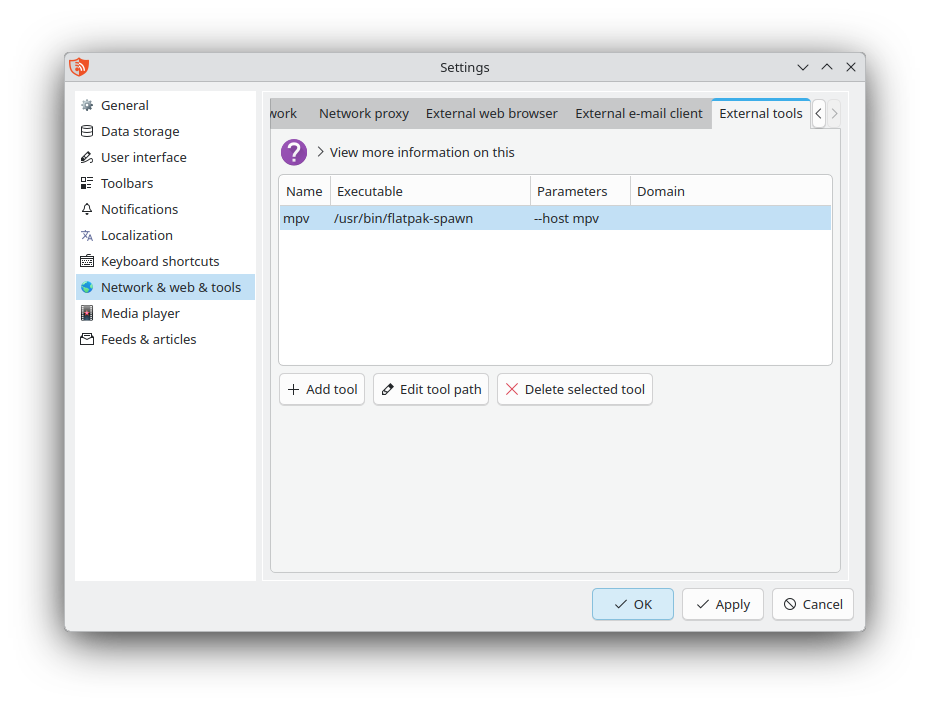
Double-click below the Executable column and type this:
/usr/bin/flatpak-spawnDouble-click below the Parameters column and type this:
--host mpv(NOTE: Replacempvwith your tool of choice).Click the Apply button to save your settings.
Your configuration should look similar to this:
Using CSS2RSS
It is possible to use CSS2RSS without breaking the Flatpak sandbox. For this, you will need to run a few commands in a terminal window.
Install the appropriate Flatpak SDK so we can use
pipto install CSS2RSS’s dependencies:
flatpak install org.freedesktop.Sdk//25.08
Install CSS2RSS’s dependencies:
flatpak run --runtime=org.freedesktop.Sdk//25.08 --command=pip io.github.martinrotter.rssguard install beautifulsoup4 maya
Download CSS2RSS inside RSS Guard’s configuration directory for easier use later:
flatpak run --command=curl io.github.martinrotter.rssguard https://raw.githubusercontent.com/Owyn/CSS2RSS/refs/heads/main/css2rss.py -o ~/.var/app/io.github.martinrotter.rssguard/config/rssguard5/css2rss.py
Uninstall the Flatpak SDK, as it is no longer needed:
flatpak uninstall org.freedesktop.Sdk//25.08
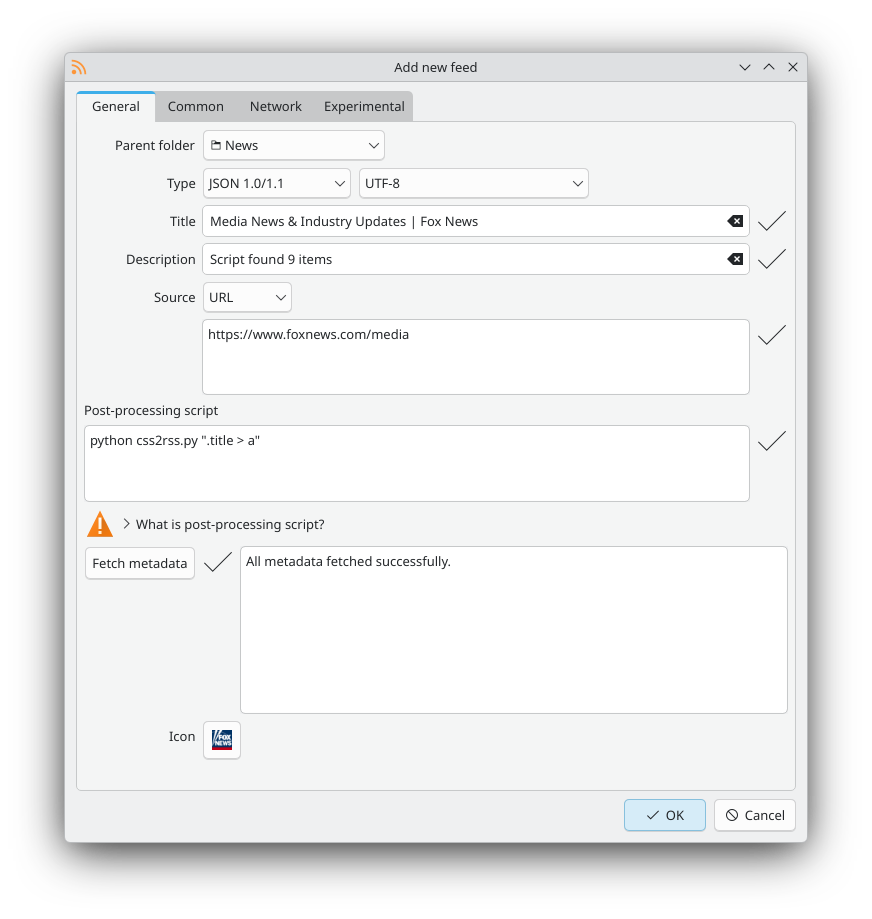
You can then immediately start using CSS2RSS by filling out the Post-processing script field when you add or edit a feed, like this: